Martin Ashworth

Not the droid you're looking for

Author: Martin Ashworth

  • Who’s Styling This Thing?

    In the last post, we built a WordPress theme from two files and a handful of HTML.

    There were headings, spacing, blue links, bullet points, but we didn’t specifically ask for any of that 90s styling – the browser just did it.

    Browser Defaults

    Every browser comes with a built-in stylesheet. It’s the reason why `<h1>` is big and bold, links are blue and underlined, and lists have bullet points.

    The thing is that different browsers make different styling decisions:

    – `<body>` gets an 8px margin in most browsers — that’s why unstyled pages never sit flush to the edge

    – `<h1>` through `<h6>` have their own margins and font sizes, but they vary between Chrome, Safari, and Firefox

    – `<ul>` has left padding and bullet styles that aren’t quite the same everywhere

    – Link colours and underline behaviour differ subtly

    If we start adding our own CSS on top of these defaults, we’re building on a foundation we don’t fully control. The spacing might look right in Chrome but be slightly off in Safari because their default `<h2>` margin is different.

    So before we start making any design decisions, we need to strip all of this back and start from nothing.

    The CSS Reset

    A CSS reset zeroes out the browser’s styling so that we’re starting with a level playing field.

    Our theme only uses a handful of HTML elements, so we can reset the styling on these by adding the following into our style.css after the earlier comment block:

    /* Remove all default margins and padding */
    
    * {
    
    margin: 0;
    
    padding: 0;
    
    }
    
    /* Strip list bullets */
    
    ul { list-style: none; }
    
    /* Links inherit colour instead of going blue */
    
    a { color: inherit; text-decoration: none; }
    
    /* Headings inherit font size — we'll set them ourselves */
    
    h1, h2 { font-size: inherit; font-weight: inherit; }

    The Blank Slate

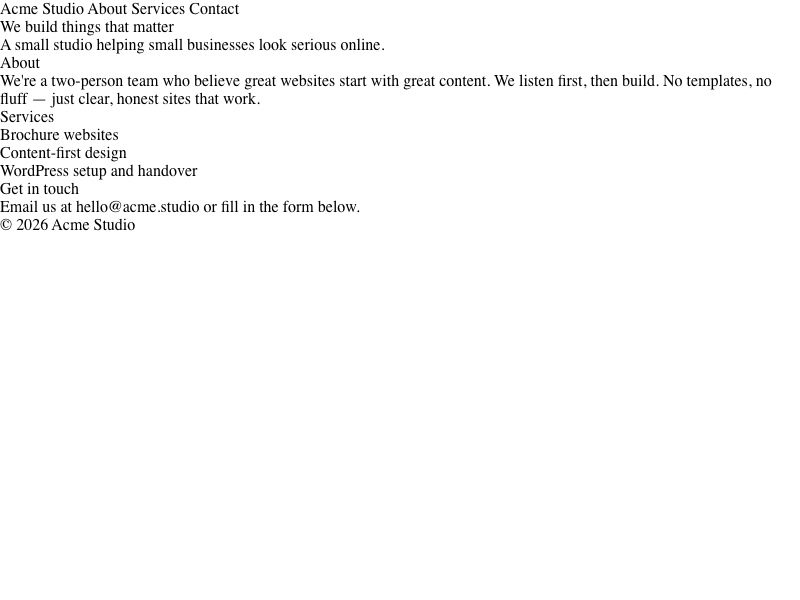
    Here’s what our page looks like with the reset applied:

    Everything is the same size, flush left with equal spacing between lines, so much so that it doesn’t even use half the page anymore.

    No bullets either, no bold headings, no blue links.

    The structure is still there in the HTML — the browser just isn’t decorating it any more.

    What Did We Do?

    Let’s walk through what each of these does.

    The universal reset (`*`)

    Removes every margin and padding from every element — the 8px body margin, the space above headings, and so on.

    Stripping list bullets

    Removes the default black circle markers from `<ul>` elements.

    Links inherit colour

    Resets links to use the same colour as their parent element and removes the underline, instead of the browser’s default of blue-and-underlined.

    Headings inherit font size

    An `<h1>` is no longer big and bold — it’s the same size as everything else.

    Why Did We Go And Do That?

    Now we’ve taken the browser’s styling defaults out of the equation. From now on, every bit of styling will be a deliberate choice…

  • The minimum viable WordPress theme

    What does it take to make a WordPress theme?

    WordPress isn’t a traditional web server like Apache or NGINX in that it doesn’t serve files as such — it processes everything through PHP, and to do that it thinks in terms of themes. Without an active theme, WordPress won’t render anything at all.

    Style.css

    So what’s the minimum theme?

    A single file: style.css, with a special comment block at the top:

    /*
    Theme Name: Sandbox Theme
    Description: A minimal theme built from scratch
    Author: Martin Ashworth
    Version: 1.0
    */

    That’s enough for WordPress to recognise it as a theme. Drop it in wp-content/themes/sandbox/, and it will appear in the admin panel where you can activate it.

    But visit the site and you get nothing — and that’s because there’s nothing actually telling WordPress what to render.

    Index.php

    This is where index.php comes in. It’s the file WordPress runs when someone hits your site. Include some HTML in here, and WordPress serves your page.

    These two files together — style.css for registration, index.php for output — constitute the minimal viable WordPress theme.

    Sprinkle in some HTML

    So, with our theme activated, let’s start with some HTML – a heading, a few sections, and a footer.

    html
    <!DOCTYPE html>
    <html lang="en">
    <head>
      <meta charset="UTF-8">
      <meta name="viewport" content="width=device-width, initial-scale=1.0">
      <title>Sandbox Theme</title>
    </head>
    <body>
    
      <header>
        <nav>
          <a href="/">Acme Studio</a>
          <a href="#about">About</a>
          <a href="#services">Services</a>
          <a href="#contact">Contact</a>
        </nav>
      </header>
    
      <main>
        <section id="hero">
          <h1>We build things that matter</h1>
          <p>A small studio helping small businesses look serious online.</p>
        </section>
    
        <section id="about">
          <h2>About</h2>
          <p>We're a two-person team who believe great websites start with great content. </p>
          <p>We listen first, then build. No templates, no fluff — just clear, honest sites that work.</p>
        </section>
    
        <section id="services">
          <h2>Services</h2>
          <ul>
            <li>Brochure websites</li>
            <li>Content-first design</li>
            <li>WordPress setup and handover</li>
          </ul>
        </section>
    
        <section id="contact">
          <h2>Get in touch</h2>
          <p>Email us at <a href="mailto:hello@acme.studio">hello@acme.studio</a> or fill in the form below.</p>
        </section>
      </main>
    
      <footer>
        <p>&copy; 2026 Acme Studio</p>
      </footer>
    
    </body>
    </html>

    Serve it up

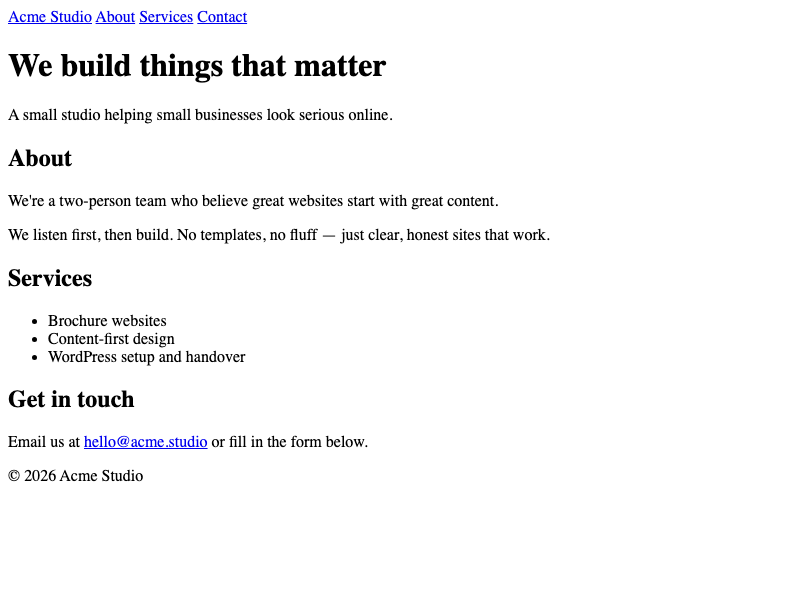
    And now let’s see what we get.

    So now we’ve got the beginnings of a working theme — two files, a handful of HTML, and a page being served in the browser.

    But why does it look like the 90s? Well, the styling, such as it is — the font, the spacing, the blue links — that’s the browser’s choice, not ours.

    To take this styling any further, we’re going to need to start making our own.

  • The Wrap-Up

    Closing the loop on a learning project

    The Caleb website launched in September 2025. I built it from scratch – going from first phone call to live site in about three months.

    Superficially, it’s all fine. The site looks exactly as it should, and Caleb is happy with it.

    However, it was the first time I’d run a proper client engagement as a WordPress designer and developer, end to end, and on my own. I benefit from adult supervision at the best of times and so, behind the scenes, it was a mess.

    The project repo had become a catch-all for everything, and it had grown organically over several months: design files, requirements docs, image iterations, font files in three different places, a child theme, a database dump, a WhatsApp conversation export, and a series of documents acting as a build log, project notes and working notes, all with duplications and cross-references that were next-to-impossible to unpick. It’s exhausting just reading through the list, let alone trying to make sense of it all.

    If I had for some reason needed to rebuild it from scratch — or hand the project to another developer — I could have spent all afternoon just working out what was what.

    That’s what the Wrap-Up was for. And it did take all afternoon, I can assure you.

    What the Wrap-Up actually was

    I’d describe it as my best effort to salvage some clarity at the end of what had been a chaotic project. Not a post-mortem as such, not quite a retrospective — just a quiet, methodical pass through everything that exists and a review of what each thing is for and where to keep it.

    The aim was to end up with three categories:

    What you need to rebuild the site

    This turned out to be surprisingly compact: a SQL database dump, a child theme, and a folder of uploaded images (including WordPress-generated re-sizes).

    The core site content

    This is what I’m calling the “content pack” — the portable essence of the site, stripped of WordPress-specific wrapping. Four pages of content as plain markdown. Five images. Four font files. A colour palette with hex values. Typography settings. Layout widths. All the ingredients, in a format that can be handed to any theme or framework.

    Everything else

    The requirements docs – I had at least shown signs of rigour at some point.

    The Figma exports – a record of the design process, respectable-looking in retrospect.

    The business card iterations and the poster files – evidence of how the scope had expanded mid-project from more than just a website.

    The WhatsApp conversation – the place where the requirements had been refined on the fly but never properly captured as formal design and scope changes.

    A planning document – complete with strikethroughs showing an attempt to track progress, but left incomplete, having been abandoned in the chaos.

    Other documents serving as a memorial to other failed attempts to manage the design and build process.

    What comes next?

    The plan is to rebuild calebwhitefield.co.uk using a proper standalone theme and an assembly process that could be repeated for any client. The content pack is the input for that process — it’s the interface between “Caleb’s specific content” and “a theme that doesn’t know anything about Caleb.”

    The site that exists now was built as a learning project. The rebuild will be part of developing a new workflow. The wrap-up is the foundation for that transition.

  • Infrastructure Review: Finding Order in Chaos

    I’ve been building this site on the fly for months. Learning HTML, CSS, Tailwind, JavaScript, WordPress, git — all at the same time, all by doing. No bootcamp, no curriculum, just me and a series of AI conversations, building things, breaking things, starting again.

    It works. I learn fast this way. But it leaves a mess behind.

    Today I stopped building and started looking.

    The state of things

    My GitHub repo had two branches that had diverged months ago. I couldn’t remember what was on each one or why they’d split. There were files nested inside folders inside folders — `archive/project-assets/archive/v2 Tailwind/v3/` — that kind of thing. Blog drafts from last year scattered across two different directory structures. Design iterations buried where nobody would find them. A Plan.md that was half-obsolete.

    Meanwhile, the live site had evolved into WordPress, but none of that was reflected in the repo. No database backup. No theme export. No record of what was actually live on the domain.

    I also had a dev subdomain I’d forgotten about, a separate repo for personal content that was now redundant, and a hosting contract with a large price increase looming in a couple of months.

    I’d overwhelmed myself again.

    What I actually did

    I sat down with Claude Code and talked it through. Not “tell me the answer” — more like “help me see what I’ve got.” That distinction matters.

    The first thing we did was audit the repo for secrets. I’d suddenly realised it was public and felt a knot in my stomach. Turns out it was clean — no API keys, no passwords, nothing leaked. But the exercise surfaced an important question: should it be public at all? I was planning to store WordPress database exports containing hashed passwords. I also had personal content on the domain that I didn’t want exposed. The answer was obvious once I’d thought it through. I made it private before we went any further.

    That’s the thing about talking things through. People who watch me work sometimes think I’m procrastinating or overcomplicating things. But catching a security decision before it becomes a security incident isn’t procrastination. It’s due diligence.

    From there, the work was methodical:

    Merged two branches into one

    Resolved the conflicts, verified nothing was lost, deleted the old branch. One branch, one source of truth.

    Reorganised the directory structure

    Flattened the nesting, gave everything a name that says what it is. Blog drafts in one place. Design iterations in another. Image prep. Inspiration. Each folder now makes sense on its own.

    Hardened the .gitignore

    Two lines became twenty. It now blocks `wp-config.php`, environment files, credentials, and IDE clutter — but deliberately allows SQL exports because the repo is private and I need them for portability.

    Exported the WordPress database and uploads from SiteGround

    For the first time, the live site is backed up in the repo. Every post, every page, every image, every menu. If my hosting disappeared tomorrow, I could rebuild.

    Verified the backup

    Checked the SQL export against what’s live on the domain. 14 published posts, 5 pages, navigation, theme settings, contact form, SEO data — all present.

    Deleted what was no longer needed

    The dev subdomain (replaced by local development). A separate repo whose content was now captured in the WordPress export. Two fewer things to maintain.

    Wrote a README

    One with a clear record of what happened and a checklist of what’s next.

    What I learned

    The phrase “infrastructure review” came up during the session. I liked it. It’s what I did — took stock of every moving part, identified what was redundant, consolidated what mattered, and created a foundation for what comes next.

    A friend recently told me that his workplace was full of inefficiencies and that he thought I’d be good at coming in to take stock and improve things. I hadn’t thought of myself that way. But looking at what I did today, I can see it. This is the same skill — just applied to my own work instead of someone else’s.

    I’ve spent 25 years in enterprise finance systems as a contractor. Believe it or not, in that environment, version control wasn’t formalised, but something I did for my own purposes, with directories and date-stamped files. Operational workflows were whatever I made up. I never had the language to describe what I was doing. I couldn’t sell it outside of my niche, mainly because I couldn’t name it.

    I’m starting to find the words now.

    What’s next

    The repo is clean. The backup is complete. There’s a checklist in the README covering the archive review, a robots.txt update, the hosting migration in May, and eventually a rebrand.

    But the real next step is less tangible. I want to get more deliberate. Git commits that tell a story, not just snapshots taken when it feels like a good idea. Branches for actual features, not accidental divergence.

    I don’t have a polished workflow yet. But I have a foundation. And I have a better understanding of what I’m actually good at, what comes naturally, and what I might need to pay more attention to.

    That’s enough to build on.

  • The Migration Chronicles, Part 2: What Happens When You Actually Use the Thing You Built

    In Part 1, I wrote about the week that turned a routine WordPress task into something unexpected. By Friday evening I had a working local development setup for Caleb’s site, a Git repository with a clean child theme, and a SETUP.md document that described how to reproduce the whole thing. Claude Code had done the heavy lifting, and I was genuinely impressed.

    That was on my desktop machine. Today — Monday — I’m on my laptop, and the question is: does any of it actually work when you take it to a different machine?

    The Short Answer

    Yes. The local site is running on this laptop. Theme, uploads, database — all copied across using the instructions we wrote on Friday. It took minutes, not hours. That part went well.

    But the more interesting story is what happened before I got to that point, and what it taught me about the way I’d been working.

    Claude Goes Offline

    Today, I sat down to try the setup on my laptop. I opened a terminal, pulled the latest code from GitHub, created a fresh LocalWP site, and reached for SETUP.md.

    The document was clear about what needed to happen — copy the child theme here, copy the uploads there, drop the database and reimport. But the actual commands? They were written as descriptions of what Claude would do, not as things I could run myself. Step 2 was literally “Claude does this (automated)”.

    And Claude Code’s service was offline.

    I knew I needed to copy directories. I knew roughly where they needed to go. But I wasn’t quite sure about the syntax — trailing slashes, recursive flags, the kind of thing you get wrong once and then spend twenty minutes figuring out what went where. So I ended up asking a completely separate Claude (via my SiteGround hosting subscription) for help with the copy commands. It suggested using `rsync` instead of `cp`, which turned out to be the better tool anyway.

    I got through it. But the experience left a mark.

    The Over-Delegation Problem

    Here’s the thing I hadn’t fully appreciated: when you let an AI agent handle all the mechanical work, you end up with documentation that describes a collaboration, not a procedure. The SETUP.md from Friday was written for a world where Claude is always available. It was a briefing document, not a manual.

    That’s fine when the service is up but, like any technology, it only works when it’s working.

    This isn’t a complaint about Claude Code — the tool is remarkable and I’m still getting my head around what it can do. It’s more of a realisation about my own habits. I’d been so focused on the efficiency of the human-AI workflow that I’d forgotten to ask: could I do this on my own if I had to?

    The answer was “sort of, with help from another AI chat.” Which is better than nothing, but not where I want to be.

    Fixing the Documentation

    So later today, with Claude Code back online, the first thing we did was rewrite SETUP.md. Every step now has copy-pasteable commands — `rsync` for the file operations, the full MySQL incantation for the database import, and the `find` commands you need to locate LocalWP’s bundled MySQL paths (which are buried in Application Support and change with every version).

    The document still works as a Claude briefing — there’s a prompt at the bottom you can paste into a new session. But it also works as a standalone guide. If the service goes down again, or if I’m on a machine without Claude Code, I can follow the steps myself.

    It sounds like a small change. Rewrite some documentation. But it represents a shift in how I’m thinking about this workflow. The AI isn’t a replacement for understanding — it’s a multiplier. And multipliers are only useful if the thing they’re multiplying isn’t zero.

    Tidying Up

    While we were at it, we also did some housekeeping:

    The repo had a redundant theme directory — `twentytwentyfive-child-caleb` sitting alongside the real one, `twenty-twenty-five-child-caleb`. (The difference is hyphens. WordPress naming conventions are a joy.) It was an empty skeleton left over from earlier experimentation. Deleted.

    There was no README at the top of the repository. I’m absent-minded at the best of times and so, for a project I might not touch for weeks, that felt like a gap. So we added one — project overview, links to the live site and staging, directory structure, pointer to SETUP.md. The kind of thing that makes you grateful to your past self when you come back to a project cold.

    Everything committed, pushed to GitHub. The repository is now in a state where I could hand it to someone (or to future me) and they’d know what they were looking at.

    What I’m Taking Away

    Friday was about building something. Today was about stress-testing it — moving it to a different machine, discovering the gaps, and making it more robust.

    The local setup works. The documentation now stands on its own. The repo is clean. I can leave this project for a while and come back without having to reconstruct the context from memory.

    But the bigger lesson is about the relationship between automation and understanding. It’s tempting to let the agent do everything — it’s fast, it’s capable, and it gets things right more often than not. But if you can’t retrace the steps yourself, you haven’t really learned anything. You’ve just watched someone else work.

    I’m still figuring out where that line sits. But at least now I know to look for it.

  • The Migration Chronicles: How a Routine WordPress Task Turned Into Something Else

    Why I Started This

    I had a functioning website that I’d delivered to a happy client. I’d built it in the WordPress Block Editor, fumbling through with AI chatbots, official documentation, and YouTube tutorials – basically anything I could find to get past the next hurdle, until it finally coalesced into something that worked. And then I promptly switched off and forgot about it.

    But a few things were nagging at me. My Siteground hosting was on a teaser rate that was eventually going to increase significantly. I needed a way to migrate the site – either to cheaper hosting or to hand it back to the client – and I didn’t want to figure that out under pressure at the end of the contract term.

    There was also a deeper motivation. If I was going to do this type of work seriously, I needed to understand how WordPress actually works. I couldn’t keep building from scratch in the Block Editor every time. I couldn’t keep using tools I didn’t understand. My background is in enterprise-scale finance systems and I have a strong instinct to know what’s happening under the bonnet before I trust anything. Once I understand something thoroughly, I’m happy to delegate and outsource – but only because I can then open up someone else’s work and verify that it meets my standards.

    So the migration wasn’t just a migration. It was an education.

    Wednesday: Getting a Local Copy Running

    I installed LocalWP, took a SQL dump of the database, and grabbed the wp-content directory. I imported everything into a fresh local installation. It worked. The font was wrong – some CORS errors that took some diagnosing – but it worked well enough to prove the concept. I had a working copy of my client’s site running on my local desktop machine.

    I generated a child theme by exporting from the Site Editor, poked around the PHP and WordPress markup, and started to get my first real look at how WordPress structures its files and layouts. I made a note to explore the database properly – understand the tables, what each one does, and what it contains. I also noticed that the uploads folder was full of what looked like duplicates and auto-generated image variants. Evidently, there was still plenty left that I didn’t yet understand.

    It was also at this point that I started thinking about how I like to be able to switch fluidly from working on my desktop to my laptop. Unfortunately, for something to feel that seamless, it’s generally because someone did a lot of work upfront to make it that way. Usually me.

    Thursday: The Laptop, CORS, and a Few Hours I Won’t Get Back

    I set about rebuilding the site on my laptop. I Installed LocalWP, imported the database, and copied across the theme and assets. For reasons that were probably font- and CORS-related, something wasn’t right. I enabled debug mode, spent a couple of hours chasing what turned out to be a caching issue, recreated the local site to start afresh, before finally giving up.

    Not every day moves forward.

    Friday: Enter Claude Code

    I came back to the desktop, deleted the local copy and decided to try something different – Claude Code, Anthropic’s agentic coding tool, which I hadn’t used before.

    I didn’t know what to expect.

    What followed was exploratory and productive at the same time. About an hour of tidying up my Git repository – removing files that had accumulated without discipline, making commits with meaningful comments, and pushing to the remote. Then another two hours rebuilding the local site, troubleshooting on-the-fly and saving the cumulative improvements along the way. The end result was a stripped-down, clean repository containing only the essentials: the child theme, the relevant wp-content assets, and a SQL export that had been edited directly to fix internal link references. A functioning site, no errors.

    But the more significant thing was what had shifted in how the work was happening.

    The Moment Something Changed

    Until Friday, my workflow with AI had been a back-and-forth I’d become familiar with: I’d describe a problem, the AI would suggest a command, I’d execute it manually, feed back the result, and we’d agree the next step. I ‘d been doing the work and the AI was my enthusiastic advisor.

    On Friday, that changed. Claude Code didn’t just suggest what to do – when we got to the SQL import, it stepped in and offered to do it for me. I was supervising and I could inspect what it was proposing, so I let it have a go, but I simply hadn’t been prepared for that level of agency.

    The same pattern played out across the whole session. Files removed, git commits made, the SQL trawled through and edited. At one point, we found that we had made a mistake and, as part of the troubleshooting, I casually reminded it that we had a git repo so we could always roll back to an earlier working state; instead, it searched through the repo to reconstruct the history of how things had come to be, find the root of the issue, and address it properly.

    I had gone from being the person executing the work to being the person simply directing it and inspecting the results. I didn’t consciously decide to make that shift. It just sort of happened.

    The Blog Posts, and What I’ve Left Out

    By the time the site was working cleanly I was frazzled, but I wanted to try to capture the process in some sort of document because so much had happened so quickly. I asked Claude Code to draft a series of blog posts based on the context it still had from the session. I then fixed the internal links, refined the wording to match my style, questionable though it may be, corrected a few details and made them public. They’re not perfect by any means, and I’m still working to find my ideal workflow, but they’re certainly better than I could have managed by myself at that point.

    However, what those posts don’t capture is the Wednesday-to-Friday arc, the Thursday dead end and, perhaps most importantly, the moment on Friday when our respective relationships to the work fundamentally changed. Yes, the AI wrote an accurate technical record, but it had missed the most important part.

    What I’m Still Making Sense Of

    I set out to learn how to migrate a WordPress site and I ended up with a clean repository, a properly functioning local environment, and a better understanding of WordPress internals. Success. Job done.

    But I also got a direct experience of what it feels like to work with an AI agent rather than an AI assistant.

    I’m still unpicking what that means.

    The requirement for working with AI isn’t necessarily in knowing how to do every step yourself, but in knowing enough to set the direction and to recognise when something’s gone wrong, as well as to hold the whole thing to a standard.

    But that’s also true for an AI assistant.

    Until now, figuratively speaking, I had still been getting my hands dirty. I hadn’t seen the power of combining this approach with actively delegating to an AI agent. I can’t quite put it into words but it’s safe to say that my mind is blown.
  • The Site Was Built. Then the Real Work Started.

    This is an overview of a short series about setting up a local development workflow for a WordPress client site. There are more detailed posts on each stage — the repository cleanup, the database preparation, the child theme, and the rebuild. Start here and follow your curiosity.


    The site was built. The client was happy. It was live on the internet doing what it was supposed to do.

    It should have felt finished.

    The thing was, I’d built it almost entirely in the WordPress Block Editor — clicking, dragging, adjusting — and while I understood what it looked like, I couldn’t really explain how it worked. If something went wrong, could I fix it? If I wanted to try something without breaking the live site, how would I do that? If I needed to hand it over, or rebuild it from scratch, where would I even start?

    These weren’t questions that needed answers on day one. But they would need answers eventually, and so I decided to find them.


    What I actually did

    The project already had a GitHub repository. It had started life as a place to track plans and designs, and somewhere along the way it had accumulated the entire WordPress installation — all of it. Plugins, parent themes, cache files, language packs. Things that had no business being in version control.

    So I started there: cleaning the repository down to only what was mine and only what was necessary.

    The next job was the database. WordPress stores almost everything in a MySQL database — content, settings, styles, layout and so on… To run the site locally, that database needed to be exported from the live server and prepared for local use. That meant more than just downloading a file : URLs needed replacing (in more formats than I expected), the table prefix needed changing, and a handful of host-specific tables needed removing. The full story of what that involved is worth reading if you’ve ever wondered what’s actually in a WordPress database export.

    With a clean repo and a portable database, I could look at the theme properly. The site was running on WordPress’s Twenty Twenty-Five theme, but there was also child theme in the repo — something I’d exported at some point during development — and that’s where all the real design decisions could be found : the colour palette, the typography, the layout widths, the custom font files. Understanding what the child theme actually contains, and why those decisions belong in code rather than the database, turned out to be one of the more useful things I learned.

    The final step was the proof : a fresh local WordPress install, copy the theme files from the repo, import the prepared database, and see what happened.

    It worked.


    What this means in practice

    The whole thing now lives in a handful of files in a private GitHub repository. To spin up a local copy of the site — on any machine — takes about five minutes and a copy-paste of one paragraph from a setup document.

    That’s not a huge achievement in the grand scheme of things. But it’s the difference between a site that simply exists, and a site you actually have control over. Early days and baby steps but, for a first client project, I’ll take it.

  • What Should Actually Be in a WordPress Git Repository?

    When I set up a GitHub repository for this project, I wasn’t thinking about version control in any disciplined way. I was thinking about having somewhere to keep things. Plans, designs, notes, and eventually — because it seemed sensible at some point along the way — the WordPress files themselves.

    By the time I came to properly assess the situation, the repository contained the following things that had no business being there:

    • Two SiteGround plugins (security and caching tools specific to that host)
    • Three parent themes (Twenty Twenty-Three, Twenty Twenty-Four, Twenty Twenty-Five)
    • A full WordPress cache directory
    • A full set of language files
    • A few stray WordPress config files

    These aren’t my work. They’re either part of WordPress core, installed by the host, or generated automatically. Committing them to version control means tracking changes to things I didn’t write and don’t control — which is pointless — and it means the repository becomes enormous and slow for no reason.

    What should stay

    Version control exists to track your changes. For a WordPress project, that means:

    • The child theme — the only files that are genuinely yours
    • The database export — the content and settings that make it this site
    • The uploads folder — media files referenced by the content
    • Any project assets (documents, designs, notes) that belong to the project

    Everything else either ships with WordPress, gets installed from a plugin directory, or gets generated at runtime. None of it belongs in git.

    The .gitignore

    One option to address this is a .gitignore file that tells git to stop tracking the things it shouldn’t be tracking.

    I placed this inside the project-assets/Wordpress/ subdirectory rather than at the root of the repository, because the WordPress files all live there and the root already had its own .gitignore for other things.

    The key entries:

    wp-content/cache/
    wp-content/languages/
    wp-content/plugins/
    wp-content/themes/twentytwentyfive/
    wp-content/themes/twentytwentyfour/
    wp-content/themes/twentytwentythree/
    

    Deleting vs untracking

    There’s a distinction worth making here. You can tell git to stop tracking a file while leaving it on disk, or you can delete it entirely.

    On reflection, for things like parent themes and plugins, deleting made more sense — they’re not needed in the repository, and they’ll be present in any WordPress installation the project gets deployed to, so there’s no value in keeping a local copy.

    git rm -r handles both in one step: removes the files from disk and removes them from the repository’s tracking in the same commit.

    git rm -r wp-content/cache/
    git rm -r wp-content/languages/
    git rm -r wp-content/plugins/
    git rm -r wp-content/themes/twentytwentyfive/
    git rm -r wp-content/themes/twentytwentyfour/
    git rm -r wp-content/themes/twentytwentythree/

    Much cleaner. That’s better.

    The result

    A single commit removed 1,255 files and 139,882 lines from the repository. It went from a bloated copy of part of a WordPress installation to a lean collection of the things that are actually specific to this project.

    That’s what a WordPress repository should look like.


    Part of a series — back to the overview

  • Five Steps from Nothing to a Working Site

    This is the shortest post in the series, and maybe that’s the point.

    Everything described in the preceding posts — cleaning the repository, preparing the SQL dump, understanding the child theme — was building towards this moment: can we take a fresh WordPress installation and reproduce the site from just the files in the repository?

    The answer is yes, and here’s what it actually takes.

    The steps

    1. Create a new site in LocalWP — use any credentials, any settings, just get a blank WordPress install running.

    2. Copy the child theme from the repository into the LocalWP themes directory.

    3. Copy the uploads folder from the repository into the LocalWP uploads directory.

    4. Drop the default WordPress database, import caleb-local.sql

    5. Visit http://caleb-local.local

    That’s it.

    What happens

    The database import sets the active theme to the child theme, sets the site URL to the local address, and brings in all the content — pages, navigation menus, settings, everything. There is no step where you log into WordPress admin and configure anything. The site arrives ready.

    Why this matters

    A site you can rebuild from scratch in five minutes is a fundamentally different thing from a site you can’t. It means:

    • Local development is possible — make changes locally, test them, then apply them to the live site.
    • The files in the repository are the actual source of truth, not a backup of a backup.
    • Moving to a different host, or recovering from something going wrong, is a known process rather than a crisis.

    Most WordPress sites don’t work this way.

    Most WordPress sites live on a server, and that’s where all the real information is — in the database, in uploaded files, in server configuration. The repository, if there is one, is a partial record at best.

    Getting to the point where the repository is the site took longer than the original build. That’s probably the right trade-off.


    Part of a series — back to the overview

  • What a WordPress Child Theme Is and Why It Matters

    A child theme inherits everything from a parent theme and only defines what it needs to override or add. In practice, it’s a folder with a handful of files where your actual design decisions live.

    The alternative — editing the parent theme directly — is a bad idea because parent themes get updated, and updates overwrite your changes. A child theme sits alongside the parent and survives updates intact.

    The one line that makes it a child theme

    In style.css, there’s a comment block at the top that WordPress reads as the theme’s metadata. The critical line is:

    Template: twentytwentyfive
    

    That’s it. That one line tells WordPress which theme to inherit from. Everything the parent theme defines is now available to the child by default.

    What’s in the theme

    twenty-twenty-five-child-caleb/
    ├── style.css          — theme declaration and the Template line
    ├── theme.json         — colours, typography, fonts, layout widths
    ├── assets/fonts/      — four Outfit font files (.woff2)
    ├── parts/
    │   ├── header.html    — the sticky header template
    │   └── footer.html    — the footer template
    └── templates/
        ├── page.html               — standard page layout
        └── page-no-title.html      — page layout without a visible title
    

    theme.json as a design system

    theme.json is where the design decisions live as structured data rather than CSS rules. For this site that means:

    • A colour palette (eight named colours with their hex values)
    • The Outfit typeface across four weights
    • Heading styles for h1 through h6
    • Body typography settings
    • Layout widths (how wide the content column is, and the “wide” breakout width)

    Having these values in a file means they’re version-controlled, readable, and portable. Change the primary colour in theme.json and it updates everywhere the colour is used throughout the site.

    The font discovery

    When I first extracted the child theme, the font file references in theme.json looked like this:

    "src": "https://calebwhitefield.co.uk/wp-content/uploads/fonts/filename.woff2"

    These are hardcoded to the live server.

    Import the theme anywhere else and the fonts could fail to load, because the browser would look for them at a domain that either doesn’t exist locally or isn’t serving them. Even if the live server is active, it’s not necessarily accessible because of CORS restrictions.

    The simple fix is a relative path format that WordPress’s block theme system supports:

    "src": "file:./assets/fonts/filename.woff2"
    

    The file: prefix tells WordPress to look for the font relative to the theme directory. The font files live in assets/fonts/ inside the theme folder, so they travel with the theme wherever it goes. No domain, no dependency.

    Styles in code, not the database

    One of the more interesting discoveries in this process: the WordPress Site Editor saves design decisions — colours, typography, spacing — as a record in the database.

    That record is tied to the theme it was created for.

    Move to a different environment, import a different database, or switch themes, and those saved styles may or may not come with it.

    The layout widths for this site (how wide the main content column is, how wide the “breakout” sections can be) were stored in the database rather than in theme.json.

    The local copy was falling back to Twenty Twenty-Five’s defaults — a noticeably narrower layout — because the database record hadn’t been included.

    Moving those values into theme.json means they’re part of the theme code, not the database.

    Now they go wherever the theme files go, and they’re visible and editable in a text editor rather than buried in a database table.


    Part of a series — back to the overview