Having scratched the surface of Sticky Headers and observed them in the wild, it’s time to add one of my own.
For this, it’s important to get a couple of things out of the way.
In WordPress, a Header is a Pattern, which is one of the component parts used to build Pages.
Given that framework, I assumed that a Header would be tagged with the Sticky attribute which would then apply wherever the Header was used.
Once again, I was wrong.
A Header is indeed a reusable component part, but the Header itself is not simply Sticky or not – the Sticky attribute has a bit more nuance.
In my case, the Header component Pattern contains a Row, which then contains a Stack on the left and Navigation Row on the right. I wasn’t really sure where to start so I tagged the Row as ‘Sticky’, basically because this was at the top of the hierarchy:
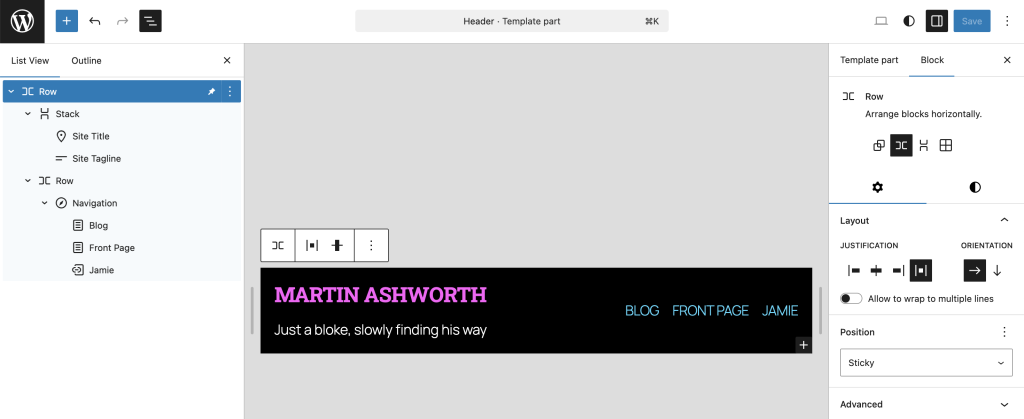
It was a nice try but it didn’t work:
Let’s think about this a bit more deeply; I only really tagged the Row as Sticky, and I did this within the context of the Header. Arguably, the Row might well have had the Sticky attribute correctly applied within the context of the Header, but the Header itself sits within the overall Page, and it’s the Page that I’m asking to scroll. And the page is, indeed, scrolling.
I’m obviously missing something. When in doubt, RTFM.
For some reason, I’ve been having trouble locating the relevant part of the documentation for this (almost certainly due to user error), but this video is a very good place to start.
For now, I’ll just highlight the four stated learning outcomes:
- Wrapping your header in a Group block.
- Allocating and selecting the sticky option.
- Changing the background of the Group block to ensure the header is not transparent.
- Previewing the sticky header or banner in the Block Editor.
OK. Lesson #1. The Sticky property is an option that is available for the Position setting, but it only applies to certain types of Blocks. Specifically, it only applies to Group, Row, or Stack, and only when they are used in the root position of Content.
That’s why I was having trouble finding the information for it. I was treating the Header as a thing that should have a property like that, because I was thinking of the Header as a Block. But the Header is a Pattern.
For the sake of completeness, I’m going to disable the Sticky property that I earlier enabled on the Row of the Header Pattern. It wasn’t serving a purpose and I don’t like to leave random settings lying around to trip me up later.
So now I need to use the Sticky property somewhere that it can actually help. That means I need to use… what was it? A Group, Row, or Stack in the root position of Content.
I don’t have strong feelings about which one to use, but the tutorial uses a Group so I’ll go with that.
I have the option to do this in either a Template or a Page. In my earlier analysis, I could see that Apple’s website included at least one area where the Header was not Sticky.
For my Front Page, it currently doesn’t scroll anyway, so making changes there is redundant. The only other actual Page is the Blog Page which only has the option to modify Header and Footer settings:
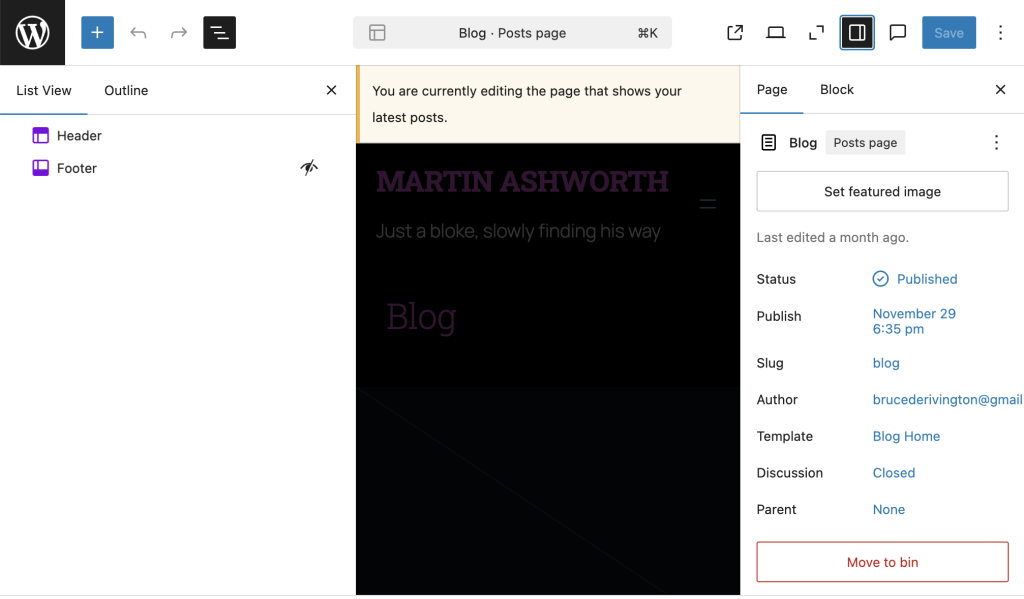
That’s because it’s using the Blog Home Template:
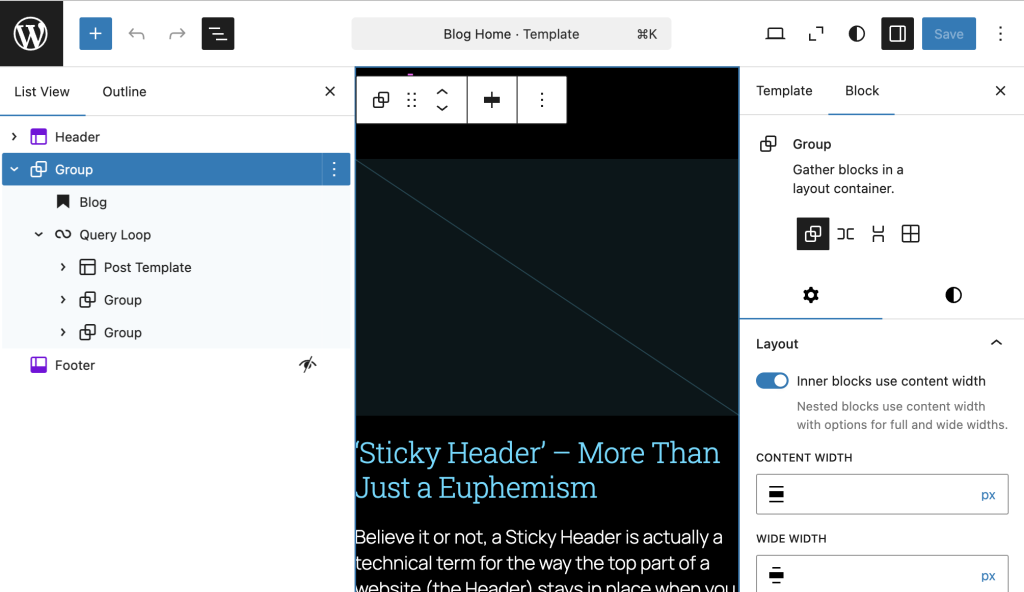
So… do I want to change the Blog Page definition or the Blog Page Template?
I’ll try them one at a time and see what happens.
Blog Page definition:
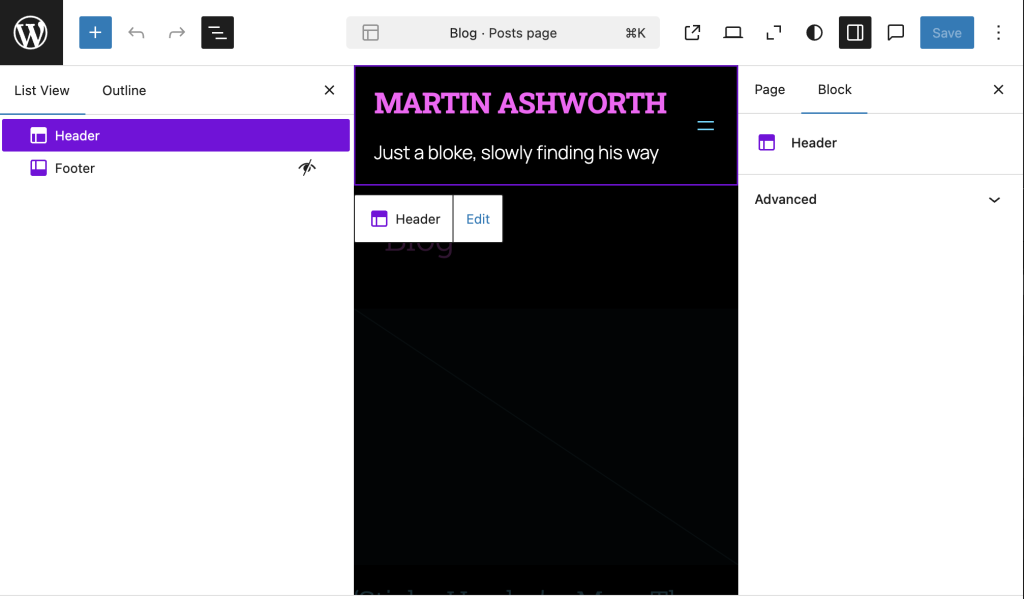
Nope. The only modifications I can make to the Header Pattern via the Blog Page definition leads me to Edit the Header Pattern, and we’ve already been down that cul de sac.
OK. So that leaves the Blog Home Template:
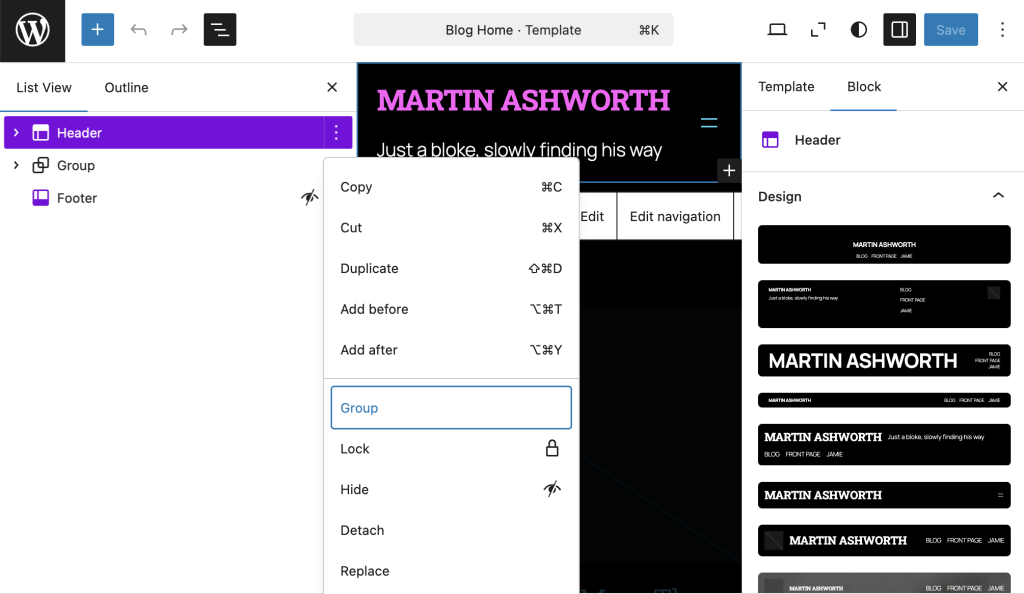
Here, I do indeed have the option to place the Header into a Group. Good. Now let’s make it Sticky:
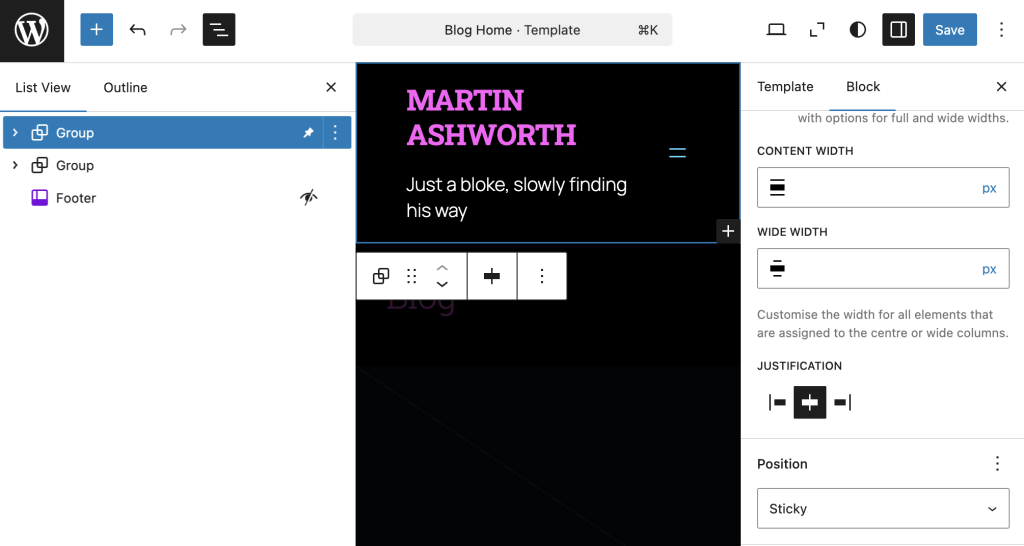
OK. And now for the big moment. When I scroll on the Blog Home Page, does the Header move or stay put?
Well. I think I’ll call that a partial success.
- Yes, the Header stays put, so it is Sticky.
- We have two new problems:
- The Header is much narrower than it was.
- The Header is transparent so the rest of the page is visible as it scrolls past.
The newly narrow Header is caused by the new Group having a default setting of “Inner Blocks Use Content Width”:
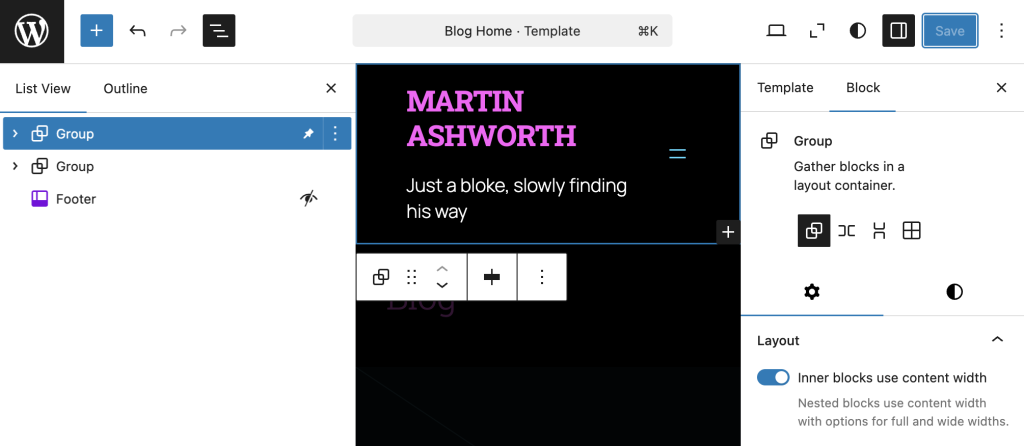
The quick fix is to disable this option. The reasons for why this was having an impact are part of a bigger topic that deserves its own investigation and Post. All the same, I’ll just confirm that I’ve disabled this option:
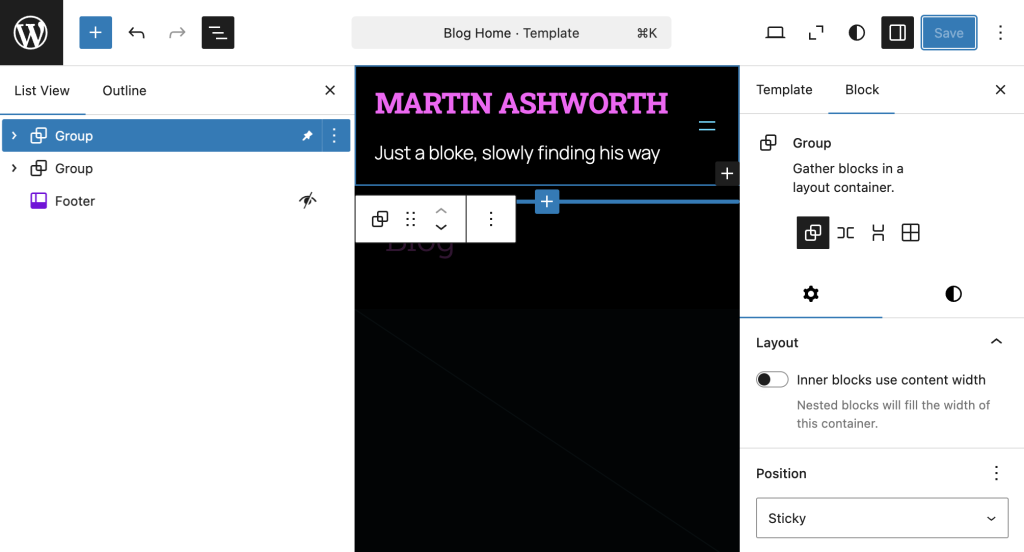
Nearly there. That’s the Sticky Header in place, but the remanining problem is that the main body content is visible when it scrolls past the Header.
This can be addressed by setting the background of the Header to be black:
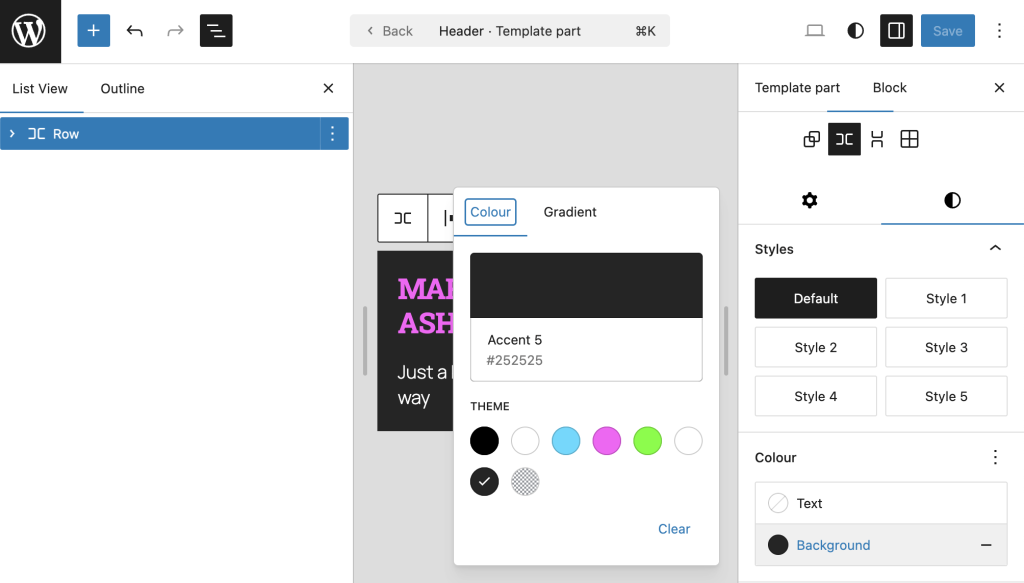
OK. It’s not perfect. Now that the Header is Sticky, I can’t help but feel as though the content of the main page just sort of disappears when it reaches the Header. I start to notice how other sites have some sort of division between the Header and the main body and content, or maybe the Header has some sort of texture or overlay. I don’t know. I’ll need to sleep on it and pay attention to other sites. Today’s goal was only to make the Header Sticky. That’s a bingo.
Leave a Reply