I have a customer, Caleb Whitefield.
Come to think of it, he’s my only customer but that’s not really the point.
What matters is that I built him a website and now we’re in a bit of a grey area around how to handle things.
This ‘grey area’ thing is probably worth a post in its own right but, for now, I’m more concerned with the fact that I just gave him WordPress Editor access – he effectively asked for it, and I didn’t know how to say ‘no’:

Or, more accurately, I didn’t know why I wanted to say ‘no’:

He didn’t specifically ask for WordPress Editor access. He’s probably never even used those words in a sentence before. I know I haven’t. But he did ask for the ability to make changes to the text on his website.
I built his website in WordPress. Whether that was a good idea remains to be seen, but it’s done now so that’s what we have to work with.
Step One – RTFM
I asked Google for “wordpress roles”.

I had to wade through more than a page of Sponsored Results before I got to the official WordPress.org documentation.
Or, to put it another way, I had to shrink my screen to 66% of its normal resolution before the desired and, surely, objectively, the best result would be displayed.
If I didn’t know that I was looking for official WordPress documentation, I would have been led down all sorts of rabbit holes. I don’t know. Maybe this was just bad luck, but that’s the first time that I’ve felt comprehensively let down by Google.
Still. I did finally find the official WordPress documentation for Roles and Capabilities. And very good it is, too.
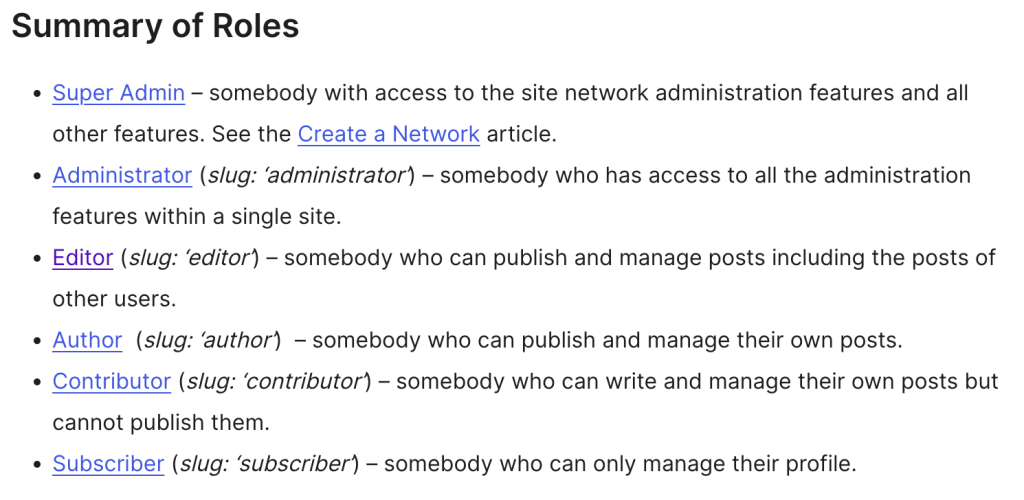
I landed on Editor as being the appropriate level of access, given that it was me (another user) who had created the original Pages that Caleb would be editing or, more accurately, “publishing and managing”.
The documentation refers to Posts rather than Pages (I’m still not quite clear on the technical difference) so I created a test user to try it out (WordPress Dashboard -> Users -> Add User).
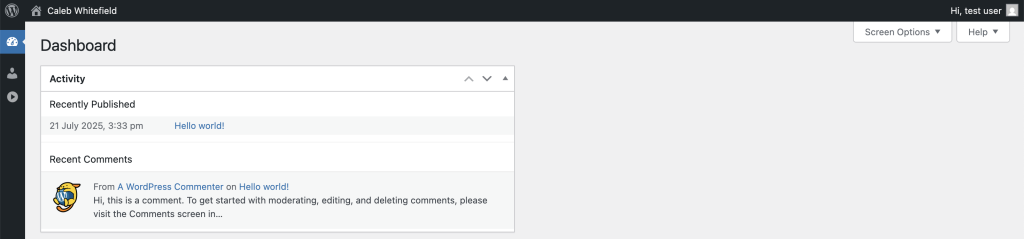
Once set up, I could then log in to the WordPress Editor as the new Editor user, albeit with a much more limited Dashboard than I was expecting…
When I logged in to the WordPress Dashboard with my admin user, I could see that I’d made a mistake where test user was set to be only a Subscriber:
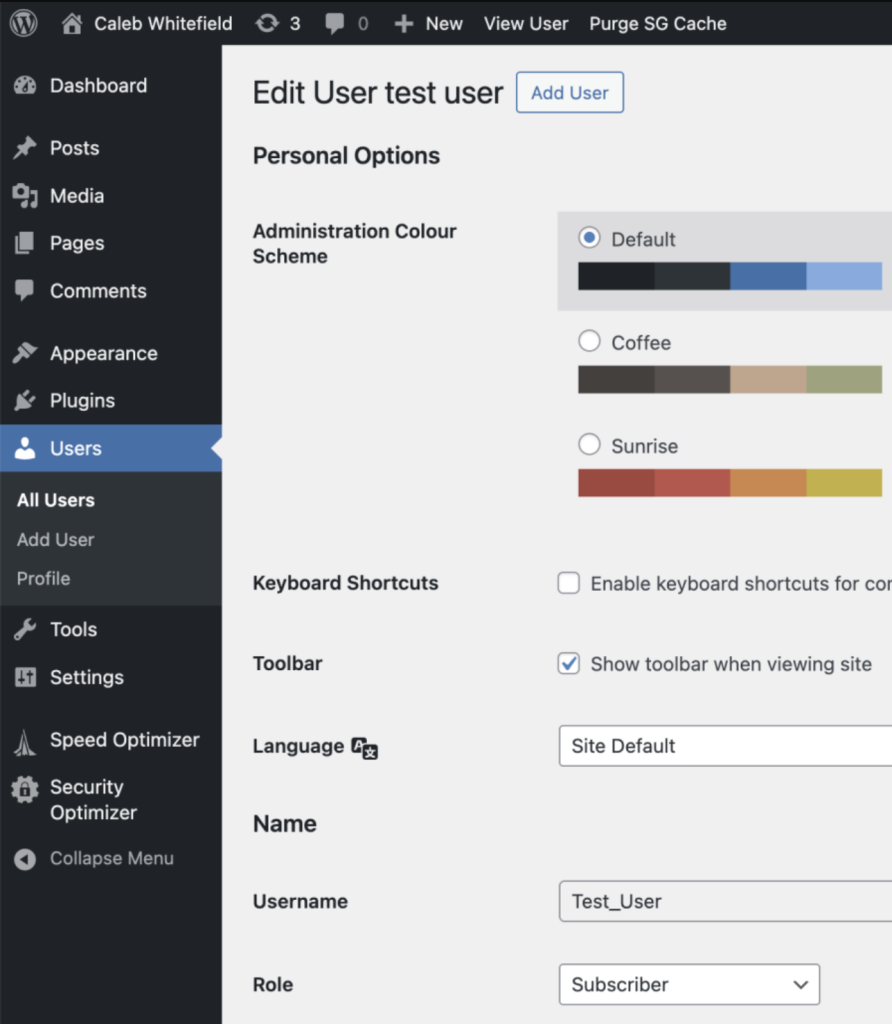
This was soon corrected by using the dropdown to select “Editor” and clicking “Update User”.
Now, sure enough, when I log in to the WordPress Dashboard as the test user, I can see all the available Pages that I created as the Admin user:
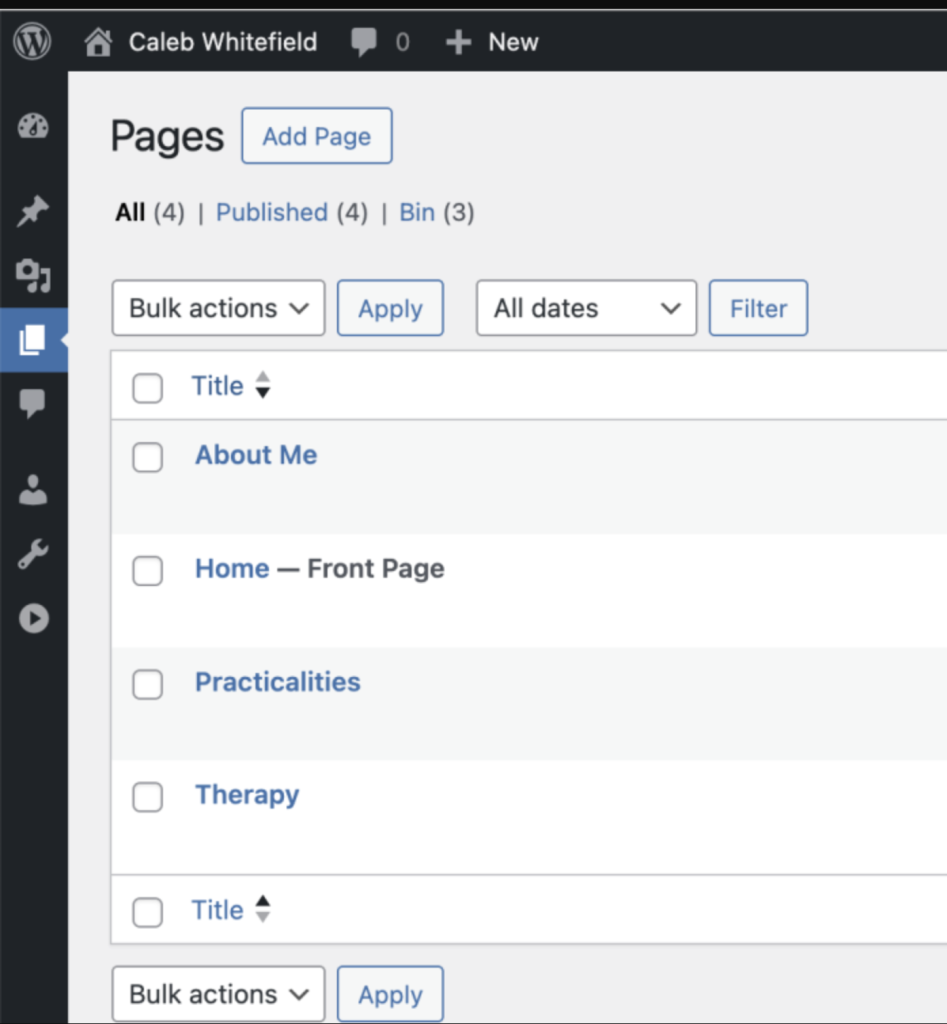
When I click to Edit one of the Pages, I get taken to the Block Editor and can make and save changes.
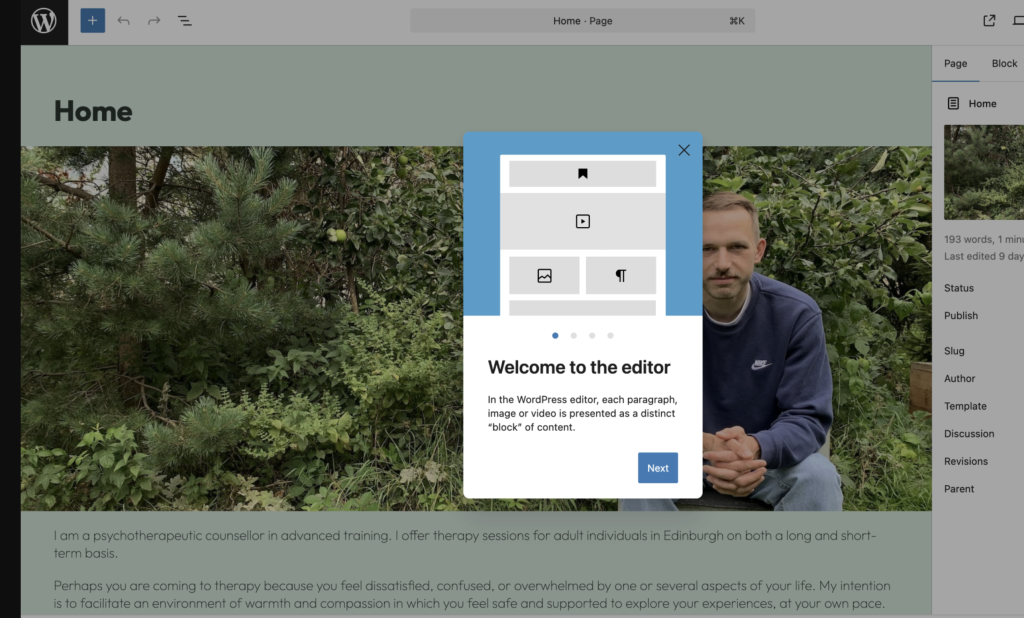
Right. That’s the POC done.
I then repeated the steps to give Caleb his own dedicated user:
One thing that this now highlights is that I haven’t yet set him up with his own dedicated email address on his domain. The main reason I haven’t done that is because he doesn’t know how to set up a new email account in his email client on his laptop and phone, and so I also need to prepare some notes for him on how to do that.
What’s slowly becoming apparent here is that I need a decent workflow for all of this. Assuming I make a habit of this, any new client should get
- 1) a personal email address associated with their domain
- 2) a WordPress login ID associated with that personal email address
- 3) instructions on how to make use of these new accounts
I suppose what I’m describing here is a sort of onboarding process.
Alright. So I gave my customer WordPress Editor access. Fine. But was it a good idea…?
Leave a Reply